
Turn a Photo of Your Paper Menu Into a Real Digital Menu
By menu-MENA Team
Published on August 29, 2026
From a photo on your phone to a menu you can click through
Every restaurant that switches to menu-MENA starts in the same place: a laminated menu with a coffee ring on it, or a PDF a designer sent over two years ago, or a stack of index cards a manager updates by hand. None of that is a digital menu yet. At best it's a photo of one, saved somewhere on a phone.
Getting from that photo to items your kitchen can mark sold out, a QR code guests can scan, and a WhatsApp order that lists what someone actually asked for by name and price takes one more step. The items have to exist as data, not as pixels on a page. That's what the Import page in your dashboard is for, and it's worth being precise about what it actually does before you use it.
What Import actually does
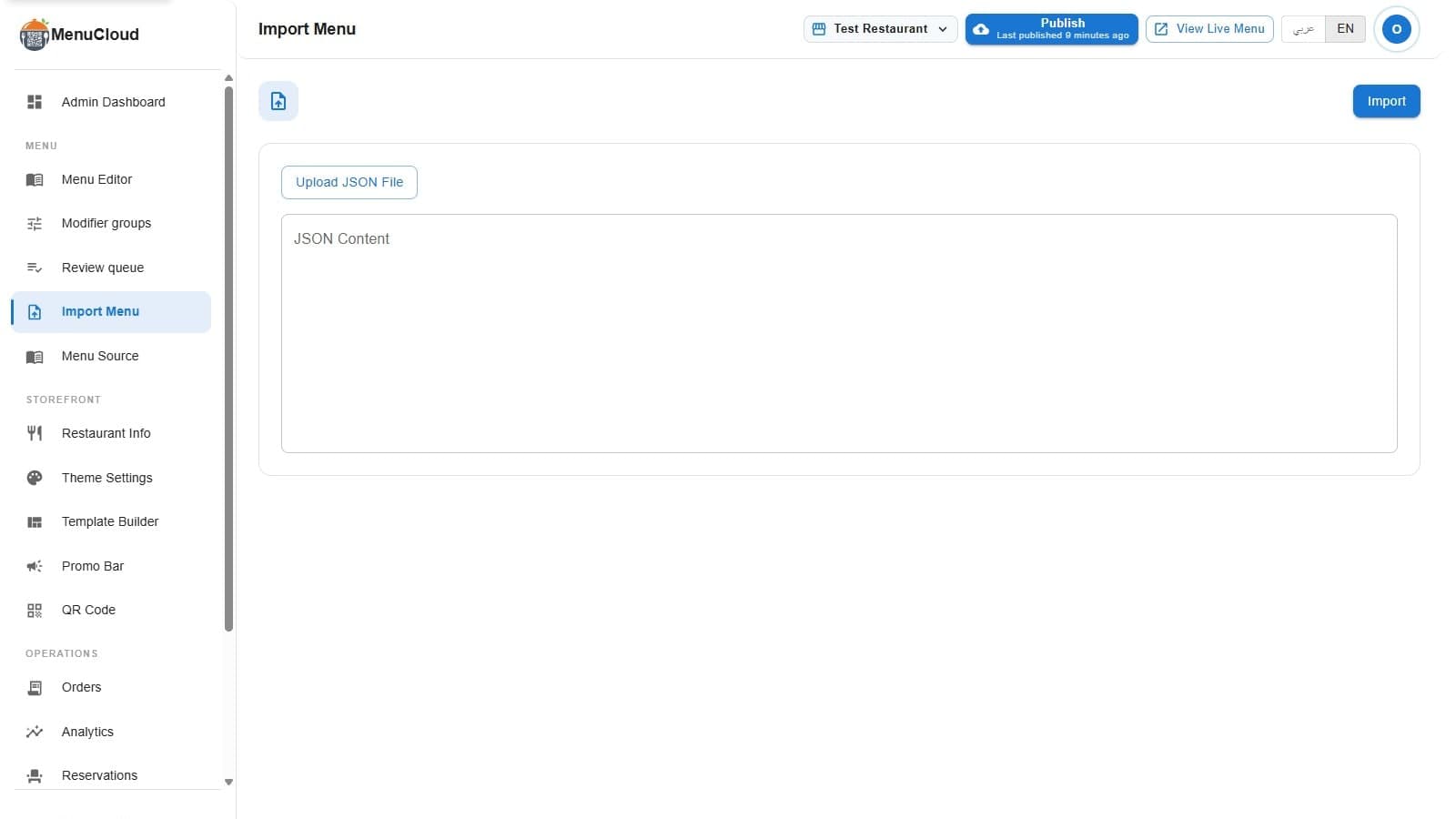
Open Admin > Import and you'll find two things: a button labeled "Upload JSON File" and a text box labeled "JSON Content," with a single "Import" button in the header. The label says exactly what it is: this isn't a camera pointed at your paper menu, and it isn't OCR running in the background. It's a paste box that turns structured text into a live menu the moment you click Import.
So a photo of your paper menu is the starting point, not the input the tool reads directly. The realistic workflow looks like this: photograph the menu so every item is in front of you, get that into a simple list of names, prices, and categories (type it out yourself, or hand the photo to a general AI chat tool and ask it to read the items back to you as a list), then paste that list into the JSON Content box.
The two formats it accepts
The Import page reads two shapes of JSON. The first matches menu-MENA's own data model directly: a categories array and a menuItems array, with each item carrying a categoryId that points at one of the categories. This is the format you'd use if you're exporting from another system or asking an AI tool to shape its output that specific way.
The second is friendlier if you're typing it yourself. You give a restaurantInfo block (name, slogan, a social media link, a note) and a menu object keyed by category name, where each category holds a plain array of items:
{
  "restaurantInfo": { "name": "Café Nour", "slogan": "Coffee, done right" },
  "menu": {
    "Hot Drinks": [
      { "name": "Turkish Coffee", "price": 25 },
      { "name": "Spanish Latte", "price": 45, "description": "Condensed milk, double shot" }
    ]
  }
}
No category IDs to invent, no item IDs, just names and prices grouped under the same category headers already printed on your paper menu. If an item comes in two sizes, give its price as { "single": 60, "double": 95 } instead of one number, and Import splits it into two separate items on its own: "Turkish Coffee (Single)" and "Turkish Coffee (Double)."
One click, and it's a real menu, not a picture of one
Click Import and menu-MENA parses the JSON, deletes whatever categories and items currently exist for that branch, and writes the new ones in their place. Worth saying plainly: Import replaces your menu, it doesn't merge into it. Run it once when you're setting up, or when you're doing a full overhaul, not as a way to bolt three new items onto a menu you've already spent a week configuring.
What comes out the other end isn't a scanned image sitting behind a QR code. Every item Import creates is a normal row in your menu, the same as one you typed into the dashboard by hand. It can carry modifier groups for size and add-on choices, dietary and allergen labels, and a sold-out toggle your staff can flip from the floor when the kitchen runs out of something.
It also means the WhatsApp cart lists each order by item name and price automatically, the same way it does for every catalog item, not the flat "message us" a scanned PDF gets stuck with.
If a designer already made you a PDF
Not every menu should go through Import. If you already have a proper designer file with custom layout and illustration you want to keep exactly as it looks, PDF mode renders that file page by page as a flipbook instead, no retyping required. Import is for the opposite situation: no polished file, just a paper menu (or a photo of one) and a need to get every item into the system as real, orderable data.
Before you click Import
A few things worth knowing going in. Invalid JSON returns an error and changes nothing, so a typo in the file won't wipe your menu, it just won't import. You'll need onboarding finished first: Import checks for a tenant before it lets you upload anything, and warns you if you try before that's done. And because it's a full replace, it's worth testing with one category first, just to see the format lands the way you expect, before pasting in the whole menu.
The laminated menu with the coffee ring stays exactly what it is: a piece of paper. What changes is that its contents live somewhere your kitchen, your guests, and your phone can all use the same way.