
Size, Add-Ons and Extras: Setting Up Modifiers Without Confusing Customers
By menu-MENA Team
Published on August 29, 2026
Why a Price field on the item isn't enough
A burger that comes in a regular and a family size isn't two menu items, it's one item with a choice attached. Same with a pizza that needs toppings, a coffee that needs a milk type, or a grill dish that needs a spice level. Handle this by typing "Burger (Large)" and "Burger (Regular)" as two separate catalog entries and you end up maintaining two names, two descriptions, and two photos for what's really one dish with a decision point. menu-MENA handles it with modifier groups instead: an option set built once, then attached to whichever items need it.
Building your first group
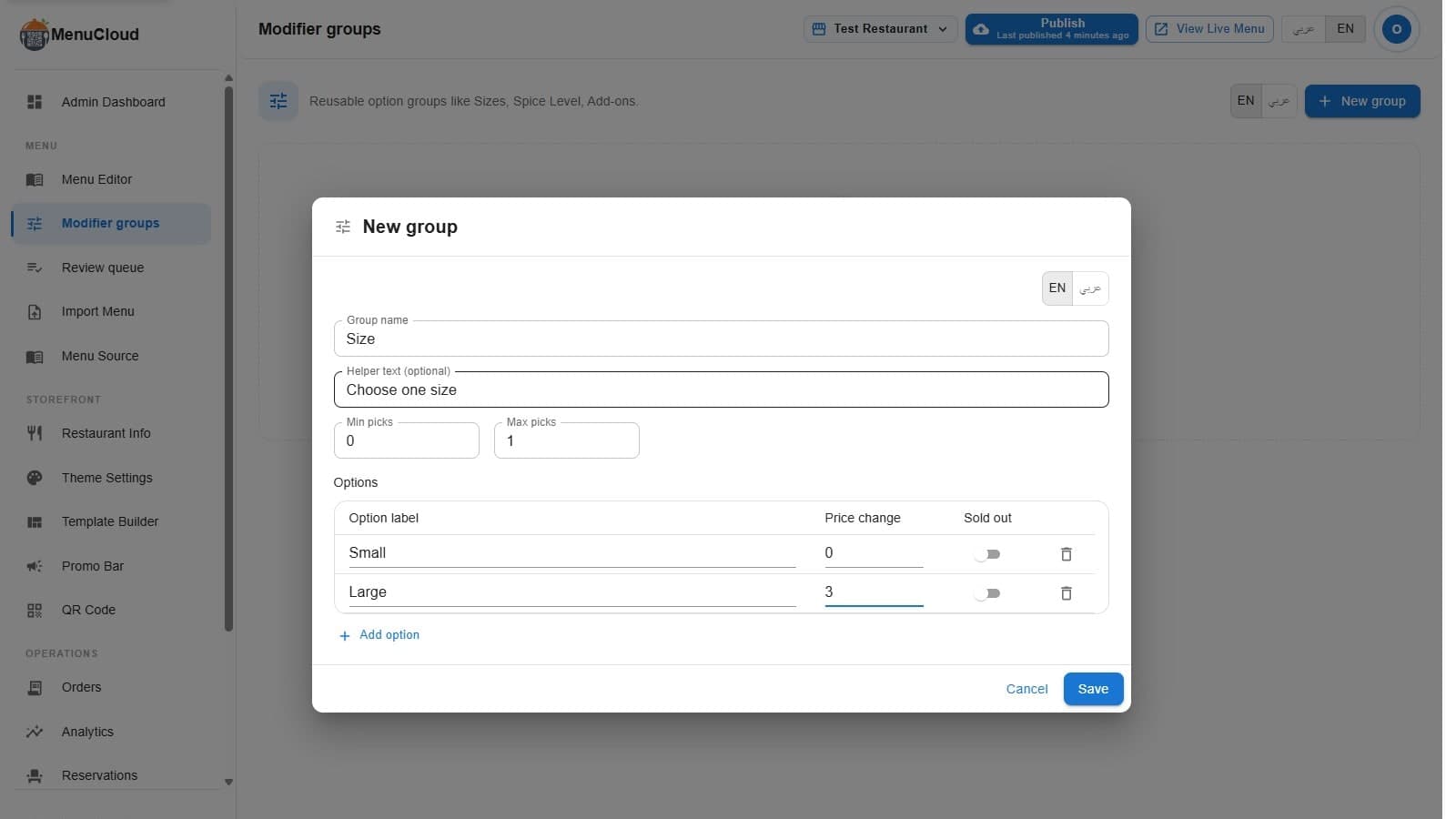
The Modifiers screen (under Modifiers in the dashboard) lists your groups in a table with columns for name, min/max select, and a preview of the options. Click New group and you get a dialog with a bilingual name field, an optional helper text field, and two number inputs: Min select and Max select.
Those two numbers do the real work. Min select of 1 with Max select of 1 makes the group required and single-pick, exactly what "Size" needs: the customer must choose one, and only one. Min 0 with Max 1 makes it optional and single-pick, good for something like Spice Level where "no preference" is a valid answer. Min 0 with Max 3 makes it optional and multi-pick, right for toppings where a customer might add nothing, one thing, or several.
Below that sits the options table: a label field (bilingual), a price delta field, and a Sold Out switch, one row per option. Leave the price field blank for a free option (the admin's own placeholder text says as much). A typical Size group looks like Small with no price change, Medium at +5 EGP, Large at +10 EGP.
Groups you probably already have
If you picked an establishment type during setup, some of this may already be done. menu-MENA's shared catalog ships with a set of starter groups pre-attached by category: pizza categories get Size and Extra Toppings, ice cream categories get Number of Scoops and Flavor (pick up to three), burger categories get Bread, Cooking Style and Extra Protein, coffee categories get Milk and Sugar. In the groups table, these show a "From catalog" badge; anything you build yourself is badged "Custom." You're rarely starting from a blank screen. More often you're deciding which of the pre-attached groups actually fit your version of the dish, and adding the ones that don't exist yet.
Attaching one group without editing every item
A group only affects an item once you attach it. Open an item, and its Modifiers section shows Add binding with a menu listing every group you've built. Anything already attached shows as disabled with an "attached" note so you can't double-add it.
Attaching is where per-item reality gets handled without duplicating the group. Inside each attached group's card:
- Override picks for this item: a switch that, when off, means the item just inherits the group's own min/max. Turn it on only if this specific item needs a different range, say a group that's normally optional but required on one dish.
- Hide options: a row of chips, one per group option, that you click to hide from this item without touching the group. Attach "Extra Protein" to both a burger and a salad, then hide "Extra Beef" on the salad. The burger keeps it, the group definition is untouched.
- Override prices: a field per visible option that changes the price on this item alone. Raise the price of Extra Cheese on one signature pizza without moving it on every other pizza using the same Toppings group.
- Item-only extras: new label-and-price rows that exist only on this item, never written back to the shared group. The admin's own hint describes exactly this use case: something like "XL" or "Supreme" that only one dish sells.
None of these four touch the group itself or any other item using it. That's the difference between one Size group serving forty items cleanly and forty near-identical groups drifting out of sync.
What the guest actually sees
Tap an item with modifiers attached and a sheet slides up from the bottom. Required groups read "Select "; optional ones read "Add " instead, so an optional group doesn't read as a demand. A multi-pick group shows a "select up to N" hint under its name. Options list their price as "+15 EGP" or "Free," never a bare number the customer has to interpret.
A required single-pick group auto-selects its first available option the moment the sheet opens, so the customer never faces an unset required field, only a default they're free to change. On a multi-pick group, tapping past the max doesn't throw an error: it swaps out the oldest pick for the new one, so "pick up to 3" behaves the way a person expects rather than locking up. If someone taps Add to order with a required group unanswered, nothing submits silently wrong: that group's row shakes and scrolls into view instead.
Sold-out options show struck through and disabled rather than disappearing outright, so the customer can see it exists and isn't just missing. If every option in a required group is sold out, Add to order itself disables and reads "Sold Out" rather than letting an order through the kitchen can't make. The same sold-out mechanic that pulls a whole dish off the menu works at the option level here: a switch, a save, and it's live.
From tap to kitchen
Selections lock in at the moment a customer taps Add. Later edits to the group don't rewrite carts already sitting in someone's phone. That snapshot carries all the way to the order. Look at a WhatsApp order that lands on the restaurant's phone and a line reads "2× Burger (Large, Extra Cheese) — 145 EGP," modifier labels included, comma-separated, right where whoever's cooking can read them without decoding anything.
Building the group is the two-minute part. The part worth spending real time on is deciding, item by item, which of your groups actually apply. A foul sandwich has a bread choice. A bowl of koshari never will.