86 an Item in Five Seconds: Real-Time Sold-Out Toggles
By menu-MENA Team
Published on August 29, 2026
Kitchens run "86" as shorthand for out of stock, and it's usually not planned. The fish sells out at 2pm on a Friday, the walk-in freezer has one flavor left instead of four, a supplier delivery didn't show. None of that waits for a quiet moment to update the menu, and a digital menu that still shows an item at full price after it's gone is how a kitchen ends up making something it doesn't have.
menu-MENA has a soldOut flag on every menu item, and there are two ways to flip it depending on how fast you need to move.
The fast path: Table view
Open your menu editor and switch the layout toggle from Cards to Table. Every item becomes a row with a dedicated Sold out column and a switch in it. Tap the switch and it saves on its own, no drawer to open, no Save button to hit afterward. The row's price and name get struck through and the whole row dims so it reads as "off" at a glance while you're scanning down a long list. This is the view built for exactly this moment: standing at the pass with a phone, working through what just ran out, one tap per item.
The other path: the item's edit panel
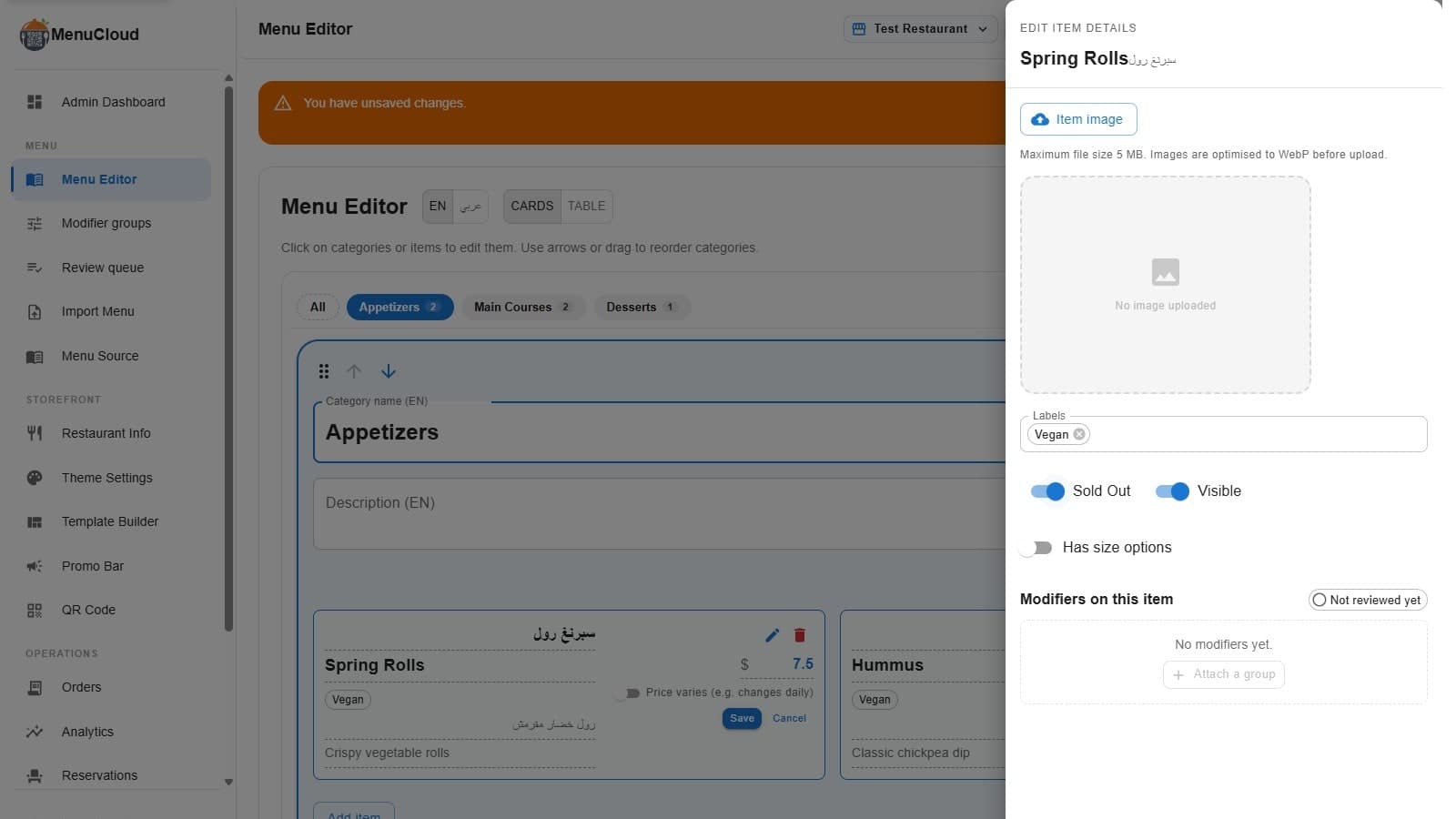
Click the pencil icon on any item and its edit panel opens, titled "Edit Item Details." Sold Out sits there as a switch right next to Visible, alongside the item's image, labels, and variant options. This path works fine too, it's just built for editing more than one thing about an item at once, so Sold Out here is a field on a draft, not an instant action. You still tap Save at the bottom before it takes effect.
What a guest sees after you flip it
On the public menu, a sold-out item's card drops to about half opacity and its name and price get a line through them. A red "SOLD OUT" badge sits over the photo (it flips to the correct side automatically in the Arabic layout, and reads "نفد" there). More importantly, the item stops being tappable for ordering. The same guard that keeps someone from adding a variable-price item to their cart before a price is set also blocks a sold-out item, so there's no accidental order landing in your WhatsApp for something the kitchen can't make.
Not the whole item, just the size
If you sell sizes or variants, like Regular and Large, and only one runs out, you don't have to 86 the whole item. Open the item's variant group and there's a "Sold out" switch on each option individually. Mark just the Large as out and the Regular keeps selling normally. If a guest opens the size picker, it skips straight to the first available option by default. If every option in the group happens to be out at once, the picker disables its Add button and shows a banner instead of leaving guests to figure out why nothing they tap does anything, which matters more once you're running more than a couple of sizes or add-on groups on the same item.
Where the count shows up
Your dashboard's overview page keeps a running "Sold Out" stat, a live count of how many items across your menu are currently marked out. It's a fast way to check, without opening the full editor, whether "just the fish" turned into six things quietly sitting unavailable since last week.
What actually happens when you tap it
The switch isn't just a database flag. Saving an item update also triggers a purge on the cached public menu page, so the change reaches guests scanning the QR code right now, not on some later cache cycle. That purge is best-effort: if it fails for any reason, your data is still saved correctly, the page just catches up on its own schedule instead of instantly. This is also why the toggle needs a live connection to actually take effect, even though your public menu keeps serving guests through a dropped Wi-Fi connection on its own end. And because every item update writes to your account's audit log with a before-and-after diff, a sold-out toggle from an hour ago isn't a mystery if someone asks who flipped it.
None of this replaces telling your staff the fish is gone. It just means the menu a guest is looking at right now agrees with what's actually in the kitchen, and that a guest can't order the one thing you can't make.