
Announce a Special Without Touching Your Menu Layout
By menu-MENA Team
Published on September 2, 2026
Your Friday brunch special starts in an hour and you want anyone who scans the QR code to see it before they even open a category. Building a new section of the menu for something that runs three days doesn't make sense, and neither does opening the Template Builder to move things around for one line of text. That's what the promo bar is for: a single scrolling announcement pinned above everything else on your public menu, set from one screen that has nothing to do with your menu's design.
A settings screen on its own
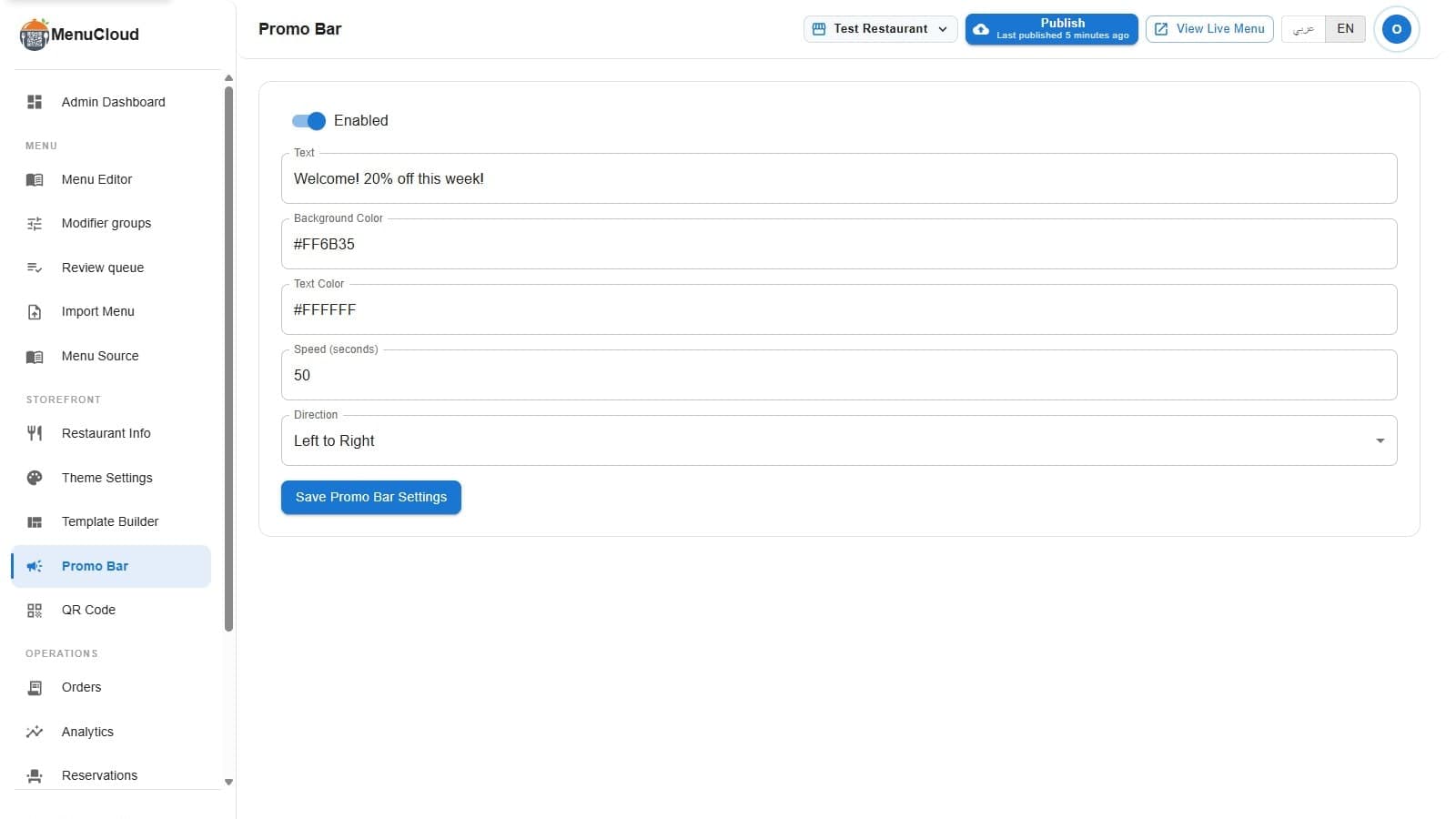
In the admin dashboard sidebar, Promo Bar sits under its own megaphone icon, separate from the Menu Editor, Template Builder, and Theme Settings. Nothing on this page touches an item, a category, or your color preset. It has exactly one job: turn a line of text into a bar that scrolls across the top of your public menu.
The fields, and what each one actually does
Open the page and the title reads "Promo Bar Settings," with six fields under it:
- Enabled - a switch, on by default. Flip it off and the bar disappears from the public menu without deleting anything else on this page.
- Text - the message itself. It's required. Try to save with it empty and you get an error instead of a saved change.
- Background Color and Text Color - hex values. New accounts start at black on white, #000000 and #ffffff, until you change them.
- Speed (seconds) - how long one full pass across the screen takes, defaulting to 10. A smaller number scrolls faster, a bigger one scrolls slower. It reads like a speed dial but it's actually a duration.
- Direction - Left to Right or Right to Left, controlling which way the text scrolls.
Why direction gets its own warning
If your promo bar's direction doesn't match your menu theme's direction, the settings page shows a warning: "The promo bar direction differs from the theme direction. This may cause inconsistent layout on your public menu." It doesn't block you from saving, it's just a check most people wouldn't think to run themselves. An Arabic menu set to RTL with a promo bar left on Left to Right still works, it just scrolls the opposite way a guest reading right to left expects. Match the two and the warning goes away.
What guests actually see
The bar sits pinned to the top of the page, above your logo and restaurant name, and stays there as a guest scrolls down through categories. The text scrolls continuously in a straight line, no page reload, no tapping required. That's the entire visual footprint: one bar, one line of text, nothing rearranged underneath it. Your header, your item cards, your menu layout all render exactly as they did before you turned this on.
It doesn't just spin forever for everyone
On the newer preset-themed menu layouts, the bar carries an aria-label with your full message for screen readers, and if a guest's device has "reduce motion" turned on, the scrolling stops entirely, the text centers itself and sits still instead of animating. You don't configure any of that. It's a property of where the bar renders, not something you toggle on the settings page.
It goes live in seconds, not on your next deploy
Hit Save Promo Bar Settings and two things happen at once: the settings write to your account, and a cache purge goes out for your public menu page. In practice, the change reaches a guest scanning your QR code within seconds, not the next time the page happens to refresh on its own. After your first save, a View Live Menu link shows up right next to the save button, so you can check it yourself instead of taking it on faith.
Turning it off doesn't erase it
When the brunch special ends, you don't retype anything for next time. Flip Enabled back off and the text, colors, speed, and direction all stay saved exactly as you left them. Turn it back on for the next thing and it's already set up.
Pair it with something trackable
A promo bar is just text. It doesn't check a code or apply a discount on its own. If the line reads "Use code EID20 for 20% off," back it with an actual coupon code so the discount is real and the redemptions get counted, instead of relying on a cashier to remember a promise a banner made.