
Why We Make You Review Imported Items Before They're Order-Ready
By menu-MENA Team
Published on September 16, 2026
Every new item starts the same way: unreviewed
Bring a hundred items into menu-MENA in one sitting, whether you paste a JSON list built from a photo of your paper menu through the Import page, or you pick them from the pre-built catalog of 1,100+ dishes, and none of them arrive with your restaurant's modifier setup already decided. A menu item in menu-MENA can carry a reviewed flag, and unless something has actively set it to true, it's absent, which the system treats the same as false. Import doesn't touch that field at all. Type a new item into the editor by hand and it starts unset too. Every entry point lands you in the same place: a stack of items nobody at your restaurant has confirmed yet.
That's on purpose. menu-MENA could guess: attach a Size group to anything with "Pizza" in the name, an Add-ons group to anything under Beverages, and call it done. Instead that decision stays with you, with one screen to work through it, one item at a time or a hundred at once.
The Review queue itself
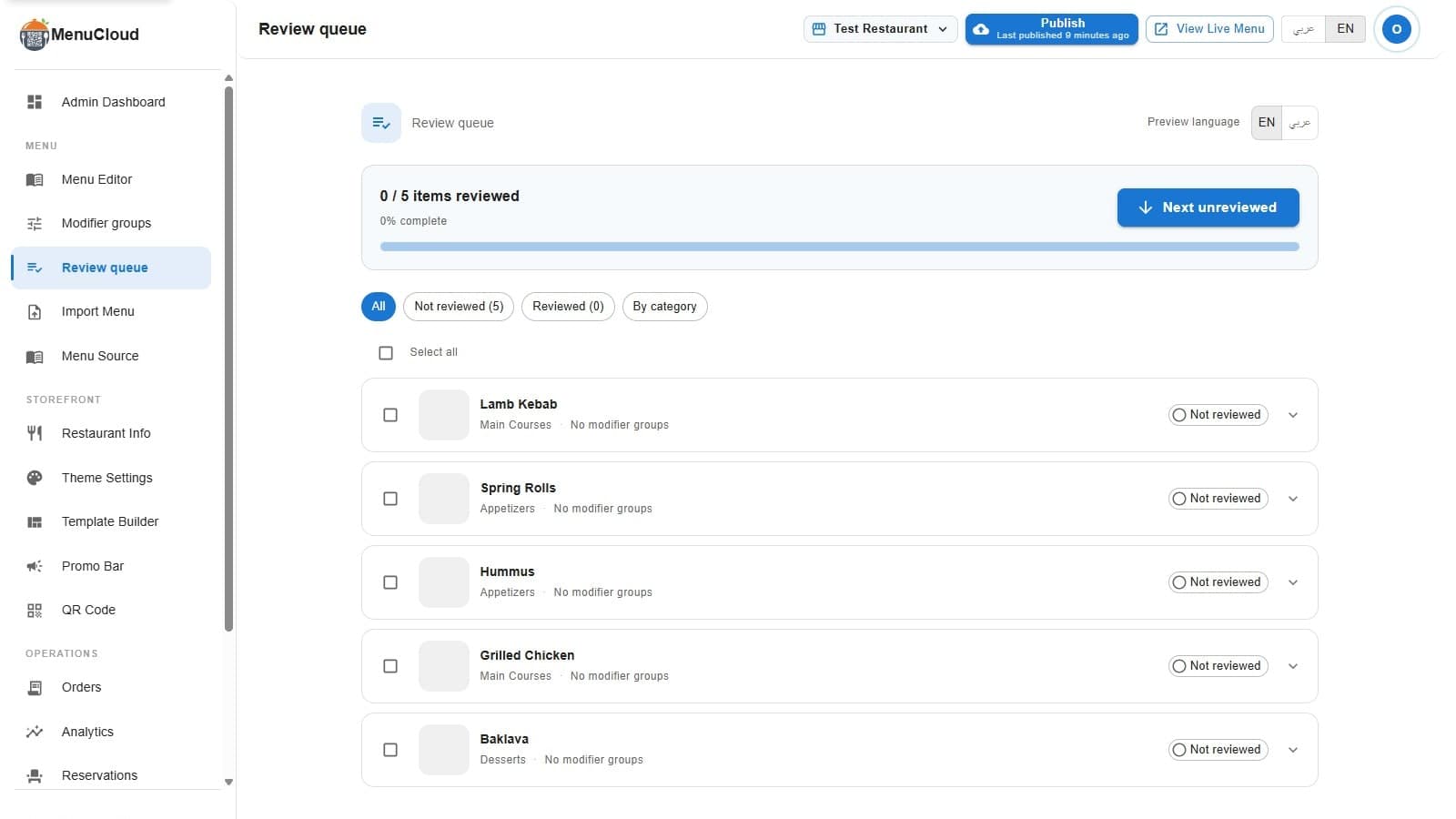
Open Admin > Menu > Review queue, right next to Import and Modifier groups in the sidebar, and the top of the page shows a plain count: "12 / 340 items reviewed," with a percent-complete bar underneath. A Next unreviewed button jumps you to the closest unreviewed item below where you're currently scrolled, opens its editor, and scrolls it into view, wrapping back to the top of the list once you've passed the last one. That's the fast path through a big batch: click, look, decide, click again.
Each row is compact: a thumbnail, the item's name (with an EN / عربي toggle in the header so you can preview it the way an Arabic-reading customer would see it), its category, how many modifier groups are already attached, and a chip reading either "Reviewed" or "Not reviewed." Click the chip and it flips on its own, no editor required, for items that plainly don't need a second look. Click the row itself and an inline editor opens below it: the same modifier binding controls you'd use anywhere else in the dashboard, plus a Mark reviewed button that saves whatever you changed and checks the item off in one action.
What reviewed checks, and what it doesn't
Worth being direct about this: an item shows up on your public menu, your QR menu, and any WhatsApp order the moment it's imported or added, whether it's reviewed or not. The reviewed flag has no effect on visibility anywhere in the app. What it tracks is narrower, and for a restaurant more useful: whether a person has actually looked at this specific item's modifier setup, its sizes, its add-on groups, and confirmed it matches how you actually sell it.
Blocking two hundred freshly imported items from appearing until someone finished reviewing all of them would turn your launch into a queue you're stuck behind. menu-MENA publishes everything right away and uses the queue to keep track of what you still haven't looked at, so nothing quietly slips out of memory once the excitement of importing two hundred items wears off.
A review with no changes still counts
Not every item needs a modifier at all. Order a plate of koshari and there's no size to pick, no add-on to consider. Open that item in the queue, confirm it needs nothing, and hit Mark reviewed with zero bindings attached. That's a complete, valid review. What decides reviewed status is whether someone looked, not whether the item ended up with any modifier group attached to it.
Working through more than a handful
For a big import, opening every row one at a time is slower than it needs to be. Filter to Not reviewed to hide anything already handled, or filter By category and clear a whole section, like every drink, in one pass. Tick the checkbox on several rows, or the header checkbox to select everything currently visible under your filter, and a bar appears at the bottom of the screen: Mark N items reviewed, for the batch you've eyeballed and know is fine as-is.
Starting the sweep over
Once every item shows Reviewed, the page swaps to a plain "All caught up" card, subtitled "Every item in the catalog has been reviewed." If you've since restructured half your menu, or a manager wants to redo the pass with fresh eyes, Review again resets every item's flag back to unreviewed in one call and regenerates your public menu bundle behind the scenes. Use it when the menu underneath the checkmarks has actually changed enough that the old pass doesn't mean much anymore, not as something you run every week.
The two-minute part is picking items from the catalog or pasting in an import. The part worth the extra twenty minutes is the queue: making sure "Family Pizza" really does need a size, and the koshari really doesn't.