Where Do Orders Go? Inside the Orders Dashboard
By menu-MENA Team
Published on August 27, 2026
A guest scans your QR code, builds a cart, taps Send, and WhatsApp opens with the order typed out. That part is the well-known half of menu-MENA's ordering flow. The less obvious half is what happens on your end: at the same moment the WhatsApp message is being prepared, the order is also written to your Orders board. You don't copy it from a chat thread. It's already there.
Five columns, one board
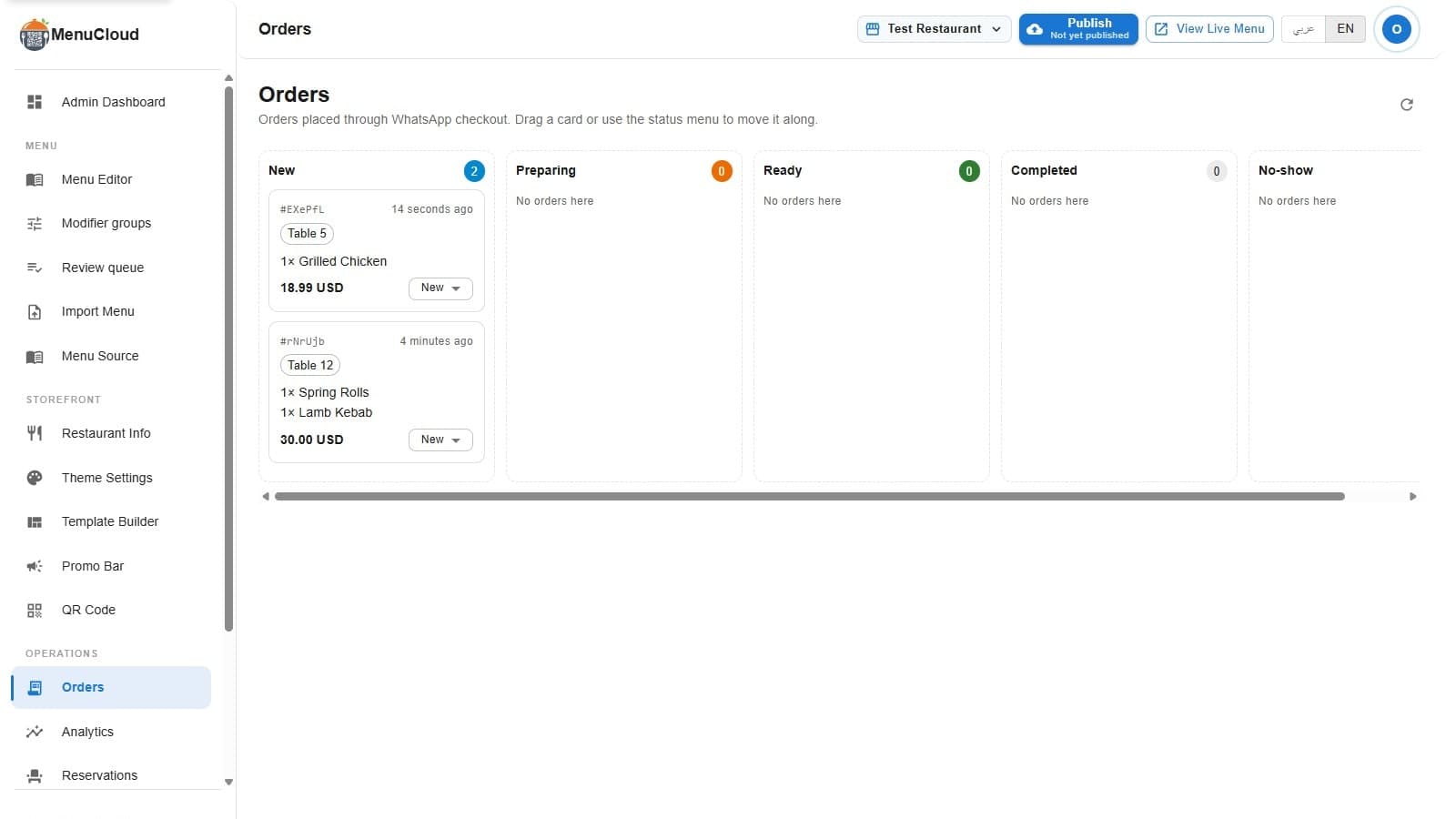
Open Orders in the admin panel and you get five columns: New, Preparing, Ready, Completed, and No-show. Every order starts in New. From there, staff move it along by dragging the card to the next column or, if dragging on a phone screen mid-rush feels fiddly, by using the status dropdown at the bottom of the card instead. Both do the same thing.
Each column header shows a count, so a glance tells you how many orders are sitting in New versus how many are already Preparing. An empty column just says "No orders here."
What's actually on a card
Each card carries the order's last six characters as a reference ID (so you can compare it against the number in the WhatsApp message), plus a relative timestamp like "5 minutes ago." Below that:
- A chip for dine-in or takeaway, and the table number if the guest picked dine-in
- Up to four line items with quantity and name ("2× Chicken Shawarma"); a fifth item onward collapses to "+2 more" so the card doesn't grow into a wall of text
- The total price, with the coupon code and discount shown separately if one was applied, and a small VAT line if the tenant has tax turned on
- A status dropdown to jump straight to any column without dragging
Nothing on the card is invented after the fact. It's the same lines, quantities, and total the guest saw in their cart before they hit Send.
The WhatsApp button only shows up once
There's a WhatsApp icon on the card, but it doesn't appear until the order reaches Ready. Tap it and WhatsApp opens its contact picker rather than a specific chat, because the platform never asks guests for a phone number during WhatsApp ordering. You pick the right conversation and a message is pre-filled: "Hi [name], your order #[id] is ready!" in whichever language the admin panel is running in. It's a small thing, but it means the person expediting food doesn't have to type that message from scratch twenty times a shift.
If you've turned on card payments
Tenants who've connected Paymob get one more thing on the card: a payment chip reading Paid, Awaiting payment, Payment failed, or Refunded, plus a "Send payment link" button next to any order that isn't paid yet. Tapping it generates a checkout link and copies it straight to your clipboard, ready to paste into the same WhatsApp chat the order came from. If no gateway is connected, none of this renders. The card looks exactly like it always has, since the payment field is only ever present once a link has actually been created for that order.
It keeps itself current without you babysitting it
The board polls for new orders every 20 seconds on its own, and there's a manual refresh button in the header if you want it now. Drag a card and change your mind about the wifi mid-drag? The status change applies immediately on screen while the save happens in the background, so a slow connection doesn't make the card jump back and forth while you wait.
What happens off-screen
Two things happen the instant an order is logged that never show up on the board itself. First, if you haven't turned off order notifications, the owner gets an email with the order details and a link straight back to this page. Second, if the guest left a name, phone, or email in their order, it's added to your customer list, which is how WhatsApp orders turn into a customer list you can actually look at later instead of scrolling through old chats.
The board doesn't replace WhatsApp. The order still lands in your phone the same way it always did. What it adds is a second, shared place where the whole team, not just whoever's holding the phone that took the order, can see what's coming, what's cooking, and what's ready to go out.