Template Version History: Undo a Bad Menu Design Change
By menu-MENA Team
Published on August 29, 2026
The one-click undo for your menu's design
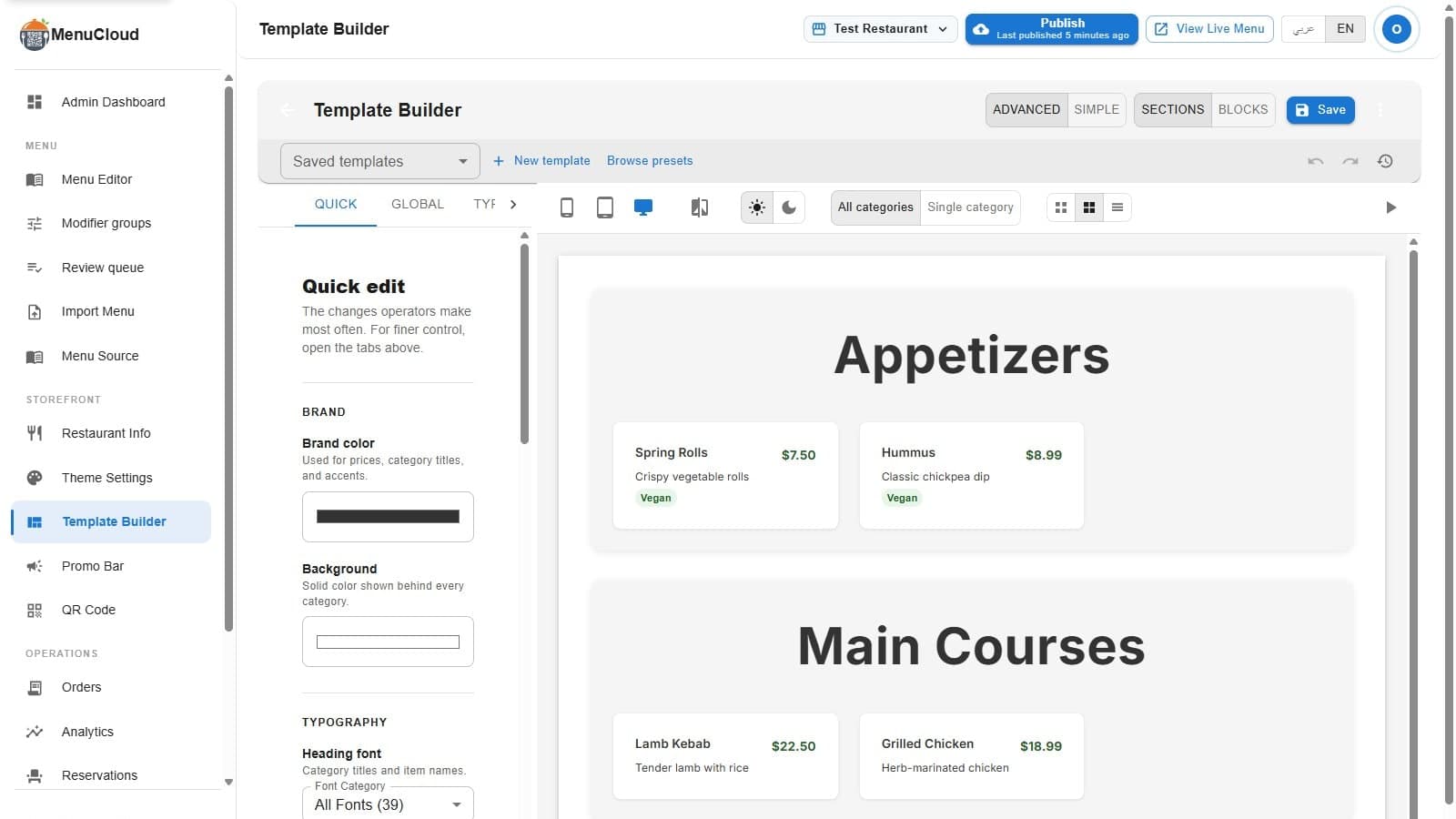
You're in the Template Builder, trying a darker background and a new heading font because you saw a competitor's menu that looked sharp. Three changes in, it looks worse than what you started with, and you can't quite remember the exact brand color hex code you had before. That moment, the one where you're not sure you can get back to where you started, is what snapshots are for.
The Template Builder has a small clock icon in the toolbar, next to undo and redo, labeled "Snapshots" on hover. Click it and a panel slides in from the right where you can save the current design as a named checkpoint and jump back to any of the last ten later.
What a snapshot actually saves
A snapshot captures the full state of your custom template: the preset you built from, brand and background color, heading and body fonts, and the section or block layout you've arranged in the builder. That's the whole design object the Template Builder edits.
It does not touch your menu items, prices, categories, or availability. Those live outside the template and aren't part of what gets saved or restored here. If you rename a dish or mark something sold out, that's a separate action with its own trail in the menu audit log, not something a template snapshot will undo.
Saving one
- Open the Template Builder for the menu you're about to redesign.
- Click the clock icon in the toolbar to open the Snapshots panel.
- Click "Save snapshot."
- You'll get a prompt asking for a name, pre-filled with something like "Snapshot 3 — Sep 12, 2:45 PM." Type your own label ("before dark mode test") or just press OK to keep the default. Cancel the prompt and nothing gets saved.
The new snapshot appears at the top of the list right away, showing its name and how long ago you saved it: "2m ago," then minutes turn to hours, hours to days, and after a week it just shows the date.
Where snapshots live, and the two limits worth knowing
Snapshots save to your browser's local storage, keyed to that specific template. They are not written to menu-MENA's database and they don't sync between devices, browsers, or team members. Save one on your laptop in Chrome, and it won't be there if you open the same template on your phone or in a different browser on the same machine. Worth knowing before you assume a teammate can pick up where you left off.
The panel also keeps a maximum of ten per template. Save an eleventh and the oldest one is dropped automatically to make room, no warning, it just falls off the bottom of the list. This is meant for the working session you're in right now, checkpointing a redesign as you go, not as a permanent archive of every look your menu has ever had.
Restoring one
Click the restore icon next to any snapshot in the list and it loads that saved design back into the Template Builder. You'll see it appear in the live preview immediately, and a small confirmation ("Snapshot restored") lets you know it took. The drawer closes so you can look at the result.
Here's the part that matters for trust: restoring a snapshot only changes your working draft in the editor. It doesn't touch your published, live menu. You still have to click "Save" in the toolbar for the restored version to actually go out to customers, the same button you'd use to save any other change. That means even undoing a mistake has a built-in second look before it's live. If you restore the wrong snapshot, just restore a different one, nothing has shipped yet.
When to actually use it
Save a snapshot right before anything you're not sure about: switching to a different preset, flipping to dark mode, moving from a grid layout to a list, changing your heading font across the whole menu. If it works, keep going. If it doesn't, you're one click away from the version that was already working, instead of trying to reconstruct it from memory or a screenshot on your phone.
Cleaning up
The delete icon next to each snapshot removes it for good, no confirmation dialog. If a snapshot is cluttering the list and you're confident you don't need it, delete it. If you're not sure, restore it first, look at the preview, and decide from there. Once it's deleted, it's not coming back.
Ten checkpoints and a required Save before anything goes live is not a full version-control system. It won't let you diff two designs side by side or roll back to a snapshot from three weeks ago that already scrolled off the list. What it does is remove the one thing that used to stop people from experimenting with their menu's look: the fear that trying something new means losing what already worked.