
Setting Your Hours Once So the Menu Never Says "Open" at 2 A.M.
By menu-MENA Team
Published on September 14, 2026
A QR menu that says "Open now" at 2 a.m. isn't a small bug. A guest reads it, walks over, and finds the shutters down. Whatever trust the QR code was supposed to build, that one wrong badge undoes it in about four seconds.
The usual cause isn't a broken feature. It's a single open/close pair typed in once, months ago, that was never built to represent a Thursday that runs late or a Friday that opens after prayers. menu-MENA's Open hours editor replaces that single pair with a real per-day schedule, and every place your status shows up on the public side reads from it.
Where it actually lives
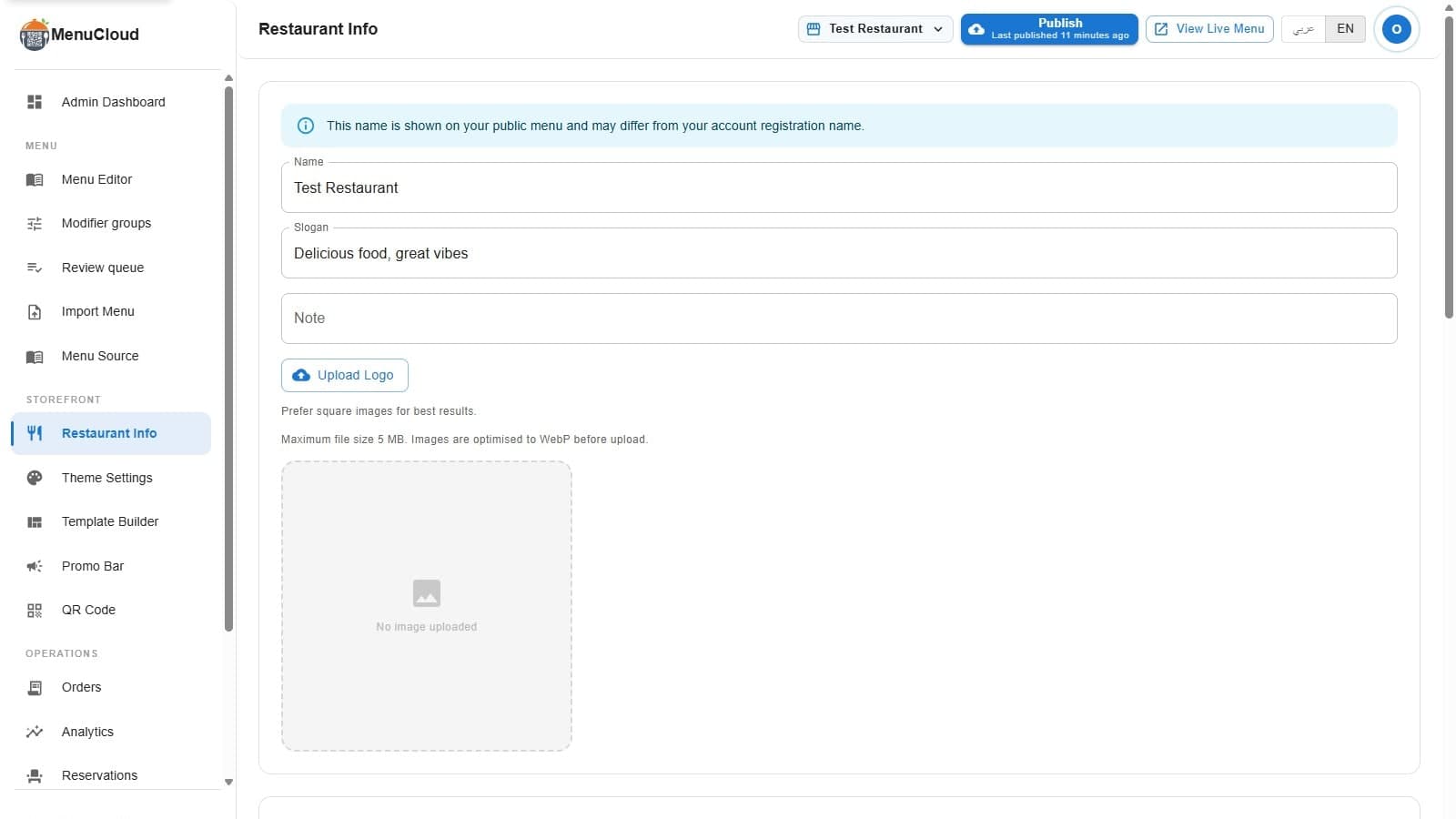
Open Settings > Restaurant Info. The Open hours section sits in the same card as your location, phone numbers, and email, right below the Email field. It's laid out as one row per day, Sunday through Saturday, each with its own open/close time and its own Add window button. The hint text under the heading spells out exactly what the row supports: "Set opening windows for each day. Add a second window for a split shift (lunch and dinner). A day with no windows is closed. Overnight windows such as 21:00 to 03:00 are supported."
A day with nothing filled in shows a Closed all day chip instead of two empty time fields, so a closed Monday reads as a deliberate choice, not a form you forgot to finish.
Split shifts and second windows
Click Add window on any day and a second open/close pair appears under the first. That's how a restaurant with a lunch service and a separate dinner service represents both without lying about the gap between them, and it's the same mechanism for an iftar sitting and a suhoor sitting during Ramadan. Each day allows up to six windows, which is more than any real shift pattern needs, but the room is there.
If your week is genuinely the same every day, you don't have to fill in seven rows by hand. Set Monday's hours the way you want them, then click Copy Monday to all days, and every other day gets the same windows. You can still go back and change the one or two days that are actually different, Friday, say, or a day you close entirely.
Hours that cross midnight
A shisha place or a late-night grill that closes at 2 a.m. isn't a special case here, it's a normal window: open at 22:00, close at 02:00, entered in that one row like any other pair. Under the hood, the open/closed calculation treats that window as two segments, the stretch before midnight counted on its own day and the stretch after midnight counted as spillover from the day before, so a guest checking at 1 a.m. on a night you're actually open sees Open now, not a wrong Closed.
Catching mistakes before they save
Two overlapping windows on the same day, an 18:00–23:00 dinner shift that accidentally overlaps a 21:00–02:00 late window, get caught before you hit save. The editor runs the same overlap check the settings API enforces server-side, so if two windows collide it shows an inline warning ("Two windows on the same day overlap. Fix them before saving.") right under the day in question instead of letting you save something contradictory and finding out later why the badge looks wrong.
Each branch keeps its own schedule
Run more than one location and this isn't one setting for the whole account. Every branch has its own Restaurant Info screen and its own Open hours section, because a branch in a mall with different closing rules than your original street location genuinely needs different hours, not the same ones copied over by accident. Set each branch separately, and each one's public menu badge reflects that branch's real week.
What the guest actually sees
Once hours are set, they drive the Open now / Closed badge on your public menu, and the badge always shows the day's window alongside the status, whether you're open right now or not. A guest who scans your code while you're closed doesn't just see "Closed," they see when you open again: "Opens at 18:00" if that's later today, or "Opens Friday 13:00" if the next window is a different day. If you never set any hours at all, there's no badge and no guessed status. menu-MENA doesn't claim "Closed" for a tenant that hasn't told it anything.
The same schedule also feeds the schema.org markup on your public menu page, the structured openingHoursSpecification block that lets Google itself show accurate hours next to your listing in search results, not a guess based on your category.
If you're setting this up for the first time
If Restaurant Info already had a single open/close pair from before this editor existed, menu-MENA reads it as that same window applied to all seven days and shows it that way the first time you open the new editor. Nothing on your public menu changes until you actually save from here. Once you do, the old single pair stops being read and the per-day schedule takes over.
It's one of the settings tucked into the same contact and location screen as your phone number and address, worth checking the same afternoon you fill in the rest of that page rather than saving it for later.
None of this needs revisiting once it's right. Set the week, set the time zone, and the badge on your menu tells the truth on its own from then on, including at 2 a.m.