
A QR Code With Your Logo In It, Not a Generic Black-and-White Square
By menu-MENA Team
Published on September 12, 2026
Every QR generator makes the same square
Type "QR code generator" into Google and you'll get a black-and-white grid that looks exactly like every other restaurant's, printed by a competitor two blocks away using the same free tool. It works, but it doesn't look like it belongs to your restaurant. The QR code designer in your menu-MENA dashboard exists so the code a guest scans looks like something you actually made: your colors, your dot shape, your logo sitting in the middle of it.
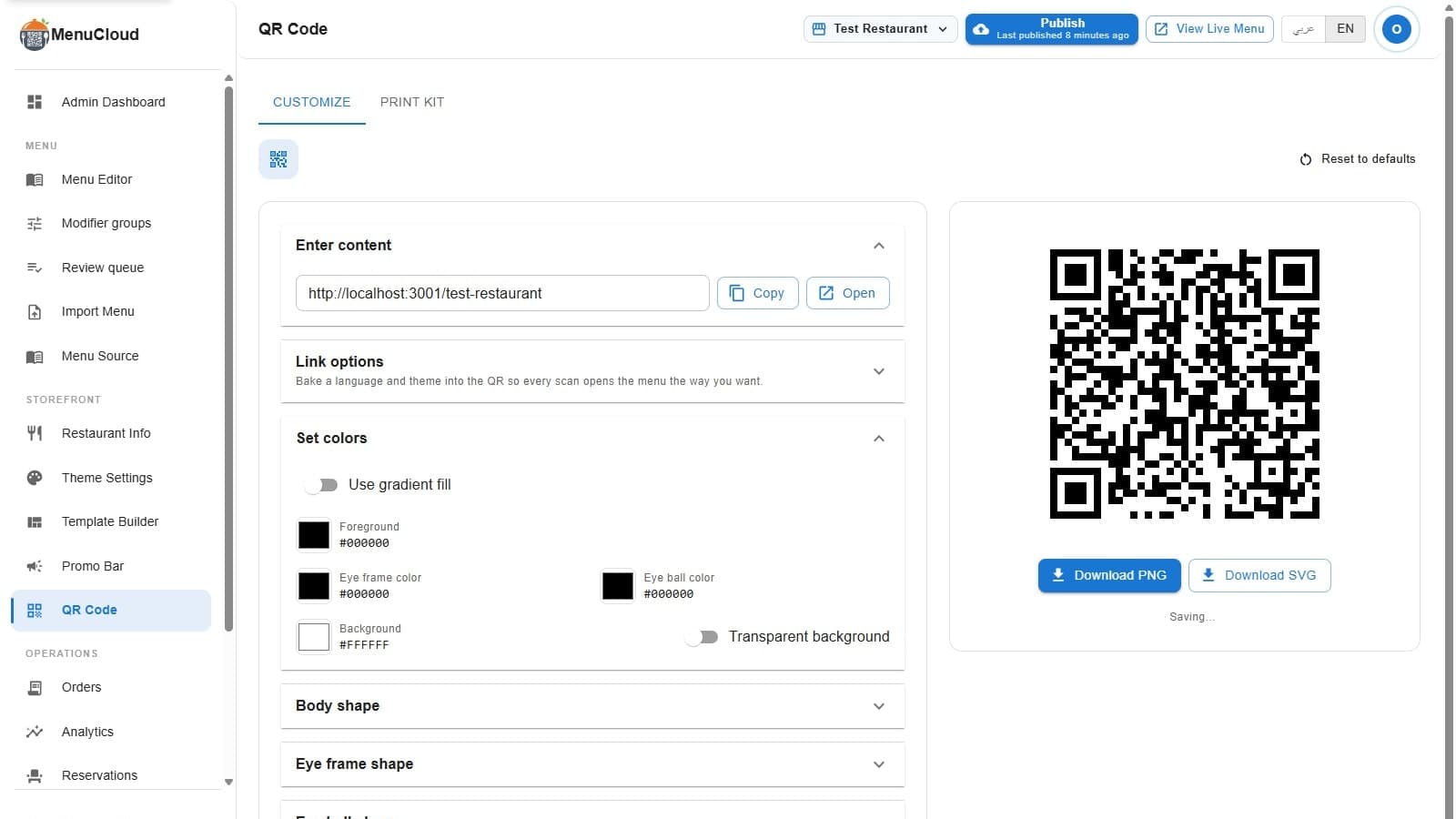
Where to find it
Open QR Code in the admin sidebar and you land on the Customize tab. There's a second tab, Print kit, that turns whatever you build here into ready-to-print table tents, window stickers, and A5 flyers, worth its own look if you haven't set that up yet: printable QR table tents and stickers. This post is about the Customize tab, the one where the actual styling happens.
At the top, a read-only field shows the URL the code currently encodes, with Copy and Open buttons next to it so you can check where it actually leads before you commit to a design.
Setting the colors
Under Set colors, the dots default to plain black on white, but there's a Use gradient fill switch that swaps the single dot color for a two-color gradient. Pick a From and To color, choose linear or radial, and if you go linear you get a rotation slider from 0 to 360 degrees. Below that, the eye frame (the three big squares that anchor the code's corners) and the eye ball (the smaller shape inside each one) get their own color pickers, independent of the dot color. Last is the background: a solid color, or a Transparent background switch if you're placing the QR on a colored card or sticker and don't want a white box around it.
Every color field shows the hex value next to the swatch, so if your brand guide gives you an exact code, you type it in rather than eyeballing it against a color wheel.
Choosing a shape for the dots and the corners
Three separate shape pickers control the geometry, each shown as a small toggle-button grid you click through:
- Body shape: the small squares that make up most of the code. Options are Square, Rounded, Dots, Classy, Classy rounded, and Extra rounded.
- Eye frame shape: the outer ring of the three corner markers. Square, Rounded, or Circle.
- Eye ball shape: the solid center of each corner marker. Square or Circle.
A rounded body with circular eyes reads as softer and more modern; square everything reads closer to the QR codes people are used to seeing on official documents. Neither affects scan reliability, they're purely a look-and-feel choice, and the preview on the right updates the instant you pick one.
Putting your logo in the middle
Under Add logo image, Upload image takes any image file, and Use restaurant logo pulls in the logo already on file for your restaurant's info if you've set one there. Once a logo is in place, three more controls show up: a Logo size slider from 10% to 50% of the code's area, a Logo margin slider that adds white space around the image so it doesn't butt directly against the surrounding dots, and Hide dots behind logo, on by default, which keeps the QR from drawing dots underneath an image that's about to sit on top of them anyway.
A logo in the middle of a QR code sounds like it should break the scan, but it doesn't, within reason. The code is generated at the highest error correction level, built to tolerate a meaningful chunk of the code being obscured or damaged and still resolve correctly. That's the same property that lets a slightly scratched or partly sun-faded sticker still scan. A 50%-of-area logo is pushing it, which is why the slider tops out there rather than higher.
One more thing on the same tab: language and theme
Below the content field, Link options lets you bake a language or a light/dark theme straight into the URL the QR encodes, instead of leaving it to whatever the visitor's phone happens to be set to. Since Arabic is a first-class language on menu-MENA rather than a toggle bolted onto an English menu, this is where you'd print an Arabic-only QR for a table tent aimed at Arabic-speaking guests, or a dark-themed one for a code that lives on a dim evening menu at the bar. Leave both on Auto and the QR just opens the menu in whatever language and theme the visitor already has set.
Getting the file out
Once it looks right, Download PNG and Download SVG both export at 1024x1024, sized for print as well as screen. Changes save on their own, roughly a second and a half after you stop touching a control, with a small Saving / Saved indicator near the preview so you're not left wondering if it stuck. If you want to start over, Reset to defaults clears every color, shape, and logo setting back to plain black dots on white.
The result is a QR code that does the same job as the generic one: it gets a phone to your menu. The difference is a guest glancing at it for half a second can already tell whose table they're sitting at, before they've even scanned it.