
Match Your Menu to Your Brand: Colors, Fonts, Dark Mode
By menu-MENA Team
Published on August 29, 2026
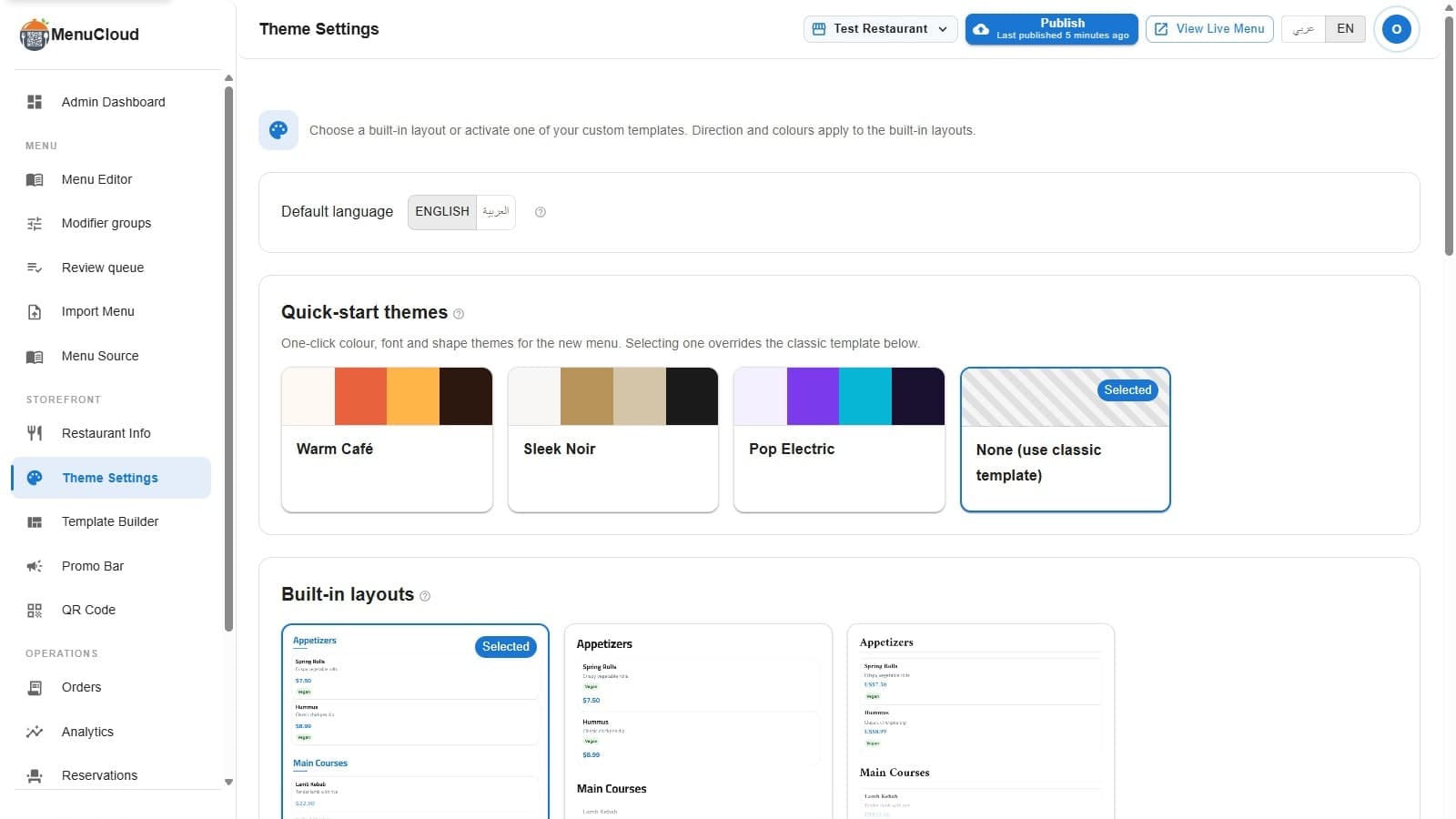
Where branding controls actually live
Every new menu-MENA account starts on the same classic template in the same default blue. That's fine for a first look, but it isn't your restaurant. The place to change it is Theme Settings, in the admin sidebar under Storefront, right above Template Builder. It handles the fast branding pass: default language, quick-start themes, your own colors, currency, and dark mode. If you later want to move individual elements around on the page, that's a separate, deeper tool. This page is for getting your colors and mode right in a few minutes, without opening a design tool at all.
Default language sets your direction too
The first control on the page is Default Language, a toggle between English and العربية. Pick العربية and the layout direction switches to RTL automatically. The two aren't separate settings: Arabic default means right-to-left, English default means left-to-right, in one move. That pairing is deliberate. Arabic on this platform isn't a mirrored English layout with translated labels; it's built as its own reading direction from the ground up.
Quick-start themes: one click, three real looks
Below that sits Quick-start themes: three ready-made cards, Warm Café, Sleek Noir, and Pop Electric, plus a fourth option, "None (use classic template)." Each of the three is more than a color swap. Behind each swatch sits a full palette (background, card surface, text, secondary text, muted text, a primary accent, a secondary accent, navigation colors, borders, and shadow), a font pairing, and a corner-radius system, and each one ships with a light version and a dark version already built in. Warm Café and Sleek Noir pair with Plus Jakarta Sans for Latin text; Pop Electric pairs with Space Grotesk. All three use Cairo for Arabic. Click a card and the swatch preview updates and takes over from the classic layout underneath. Click "None" and you're back to the plain default template, styled with whatever primary and secondary color you set further down the page.
Built-in layouts, previewed with your own menu
Under the theme cards sits Built-in layouts, where you choose between Default, Modern, and Classic row styles. Each card renders a live thumbnail using your actual categories and items, or a small sample set if your menu is still empty, so you're looking at your restaurant's real names and prices, not stock text. Clicking Preview opens the full page in a dialog before you commit to anything.
Setting your own primary and secondary color
Further down, Customize Colors gives you two fields: Primary Color and Secondary Color. These drive the classic layouts, things like buttons, active category tabs, and highlighted prices. If a color you pick would be hard to read as text against a white background, a low-contrast warning shows under the field. It's checking WCAG AA contrast, a ratio of at least 4.5:1, which catches the pale yellow or light pastel that looks fine as a small swatch but disappears once it's actual text on the menu.
Currency lives in the same card: USD, EGP, EUR, GBP, SAR, or AED, applied across every price.
Dark mode is two settings, not one
"Dark mode" here is really two separate things, and keeping them apart makes the page easier to use.
The first is what you control, in the Dark Mode section of Theme Settings: four color fields, Dark Background, Dark Surface, Dark Text, and Dark Muted Text, with working defaults already filled in (a near-black background, a slightly lighter card surface, off-white text, a muted gray for secondary text). Leave them alone and dark mode looks fine out of the box. Override them and you can match your own brand's dark palette instead of a generic near-black.
The second is what your diner controls: a small round toggle sitting at the top of the live menu page, next to the language switcher. Tapping it cycles through Auto, Light, and Dark. Auto follows the diner's phone; Light and Dark are explicit choices that stick for a year through a saved cookie, so a returning guest doesn't reset it every visit, and the choice survives a shared link too. You set the palette. They pick the mode.
Fonts: bundled, or fully custom
Pick one of the three quick-start themes and the font pairing comes with it automatically, no extra step. If you want to choose an individual font, a different one for headings than for item names, that control sits a level deeper, inside the Template Builder, with a searchable list of 39 curated Google Fonts, including Arabic-friendly families like Cairo, Tajawal, and Amiri that load with the correct Arabic character set automatically. Theme Settings is the fast pass. The Template Builder is where that level of control lives.
Save it, then check the QR
Every change on this page, language, theme, colors, currency, chrome toggles, dark palette, sits in one form with a single Save Theme button at the bottom. Nothing goes live until you press it. After saving, scan your own table QR code and tap the toggle to dark mode before telling staff it's done. A color that reads fine on a laptop screen in daylight can look different on a phone at a dinner table with the lights turned down.