
Why Your Menu Photos Load Instantly (Even on 3G)
By menu-MENA Team
Published on August 29, 2026
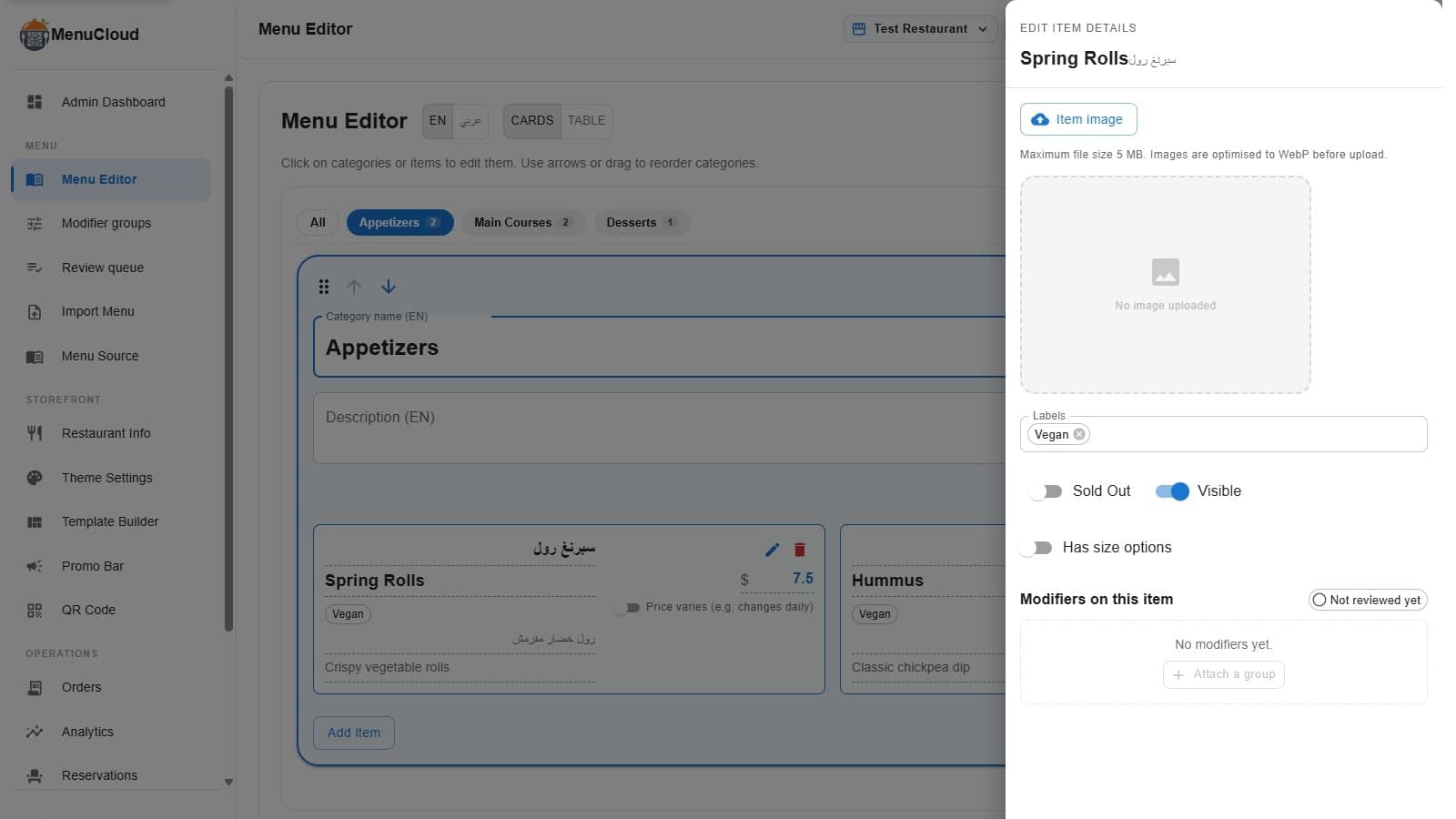
What actually happens when you tap "Item image"
Open a menu item in your dashboard and there's a button labeled Item image. Tap it, pick a photo from your phone or your computer, and a progress bar runs for a second or two. What you don't see is that most of the work already happened before the file went anywhere near our servers.
The moment you select a photo, your browser reads it, draws it onto a canvas, and checks two things: how big the file is in bytes, and how big the image is in pixels. Menu item photos get capped at 2400 pixels on the longer side. If your photo is already smaller than that, nothing shrinks. If it's a 4000-pixel photo straight off a phone camera, it gets scaled down to fit.
Then comes the size check. If the original file is already under 5MB, and a full-quality re-encode still fits under that limit, menu-MENA uploads your original file exactly as you took it. No forced conversion, no quality loss. Most phone photos exported at normal settings clear this bar without any compression at all.
The 5MB ceiling, and what happens if a photo won't fit under it
Modern phone cameras produce big files. A single photo can run 8 to 15MB before you've done anything to it. That's where the second path kicks in.
If your original photo is over 5MB, menu-MENA re-encodes it as WebP starting at 85% quality. If that's still too big, it drops to 75%, then 65%, and keeps stepping down in 10-point increments until the file fits under 5MB or the quality hits a floor of 40%. In practice, the vast majority of photos clear the 5MB mark somewhere in that range, well before quality gets low enough to look compressed.
If a photo genuinely can't be brought under 5MB even at the lowest quality step, the upload doesn't hang or silently fail. You get a direct error telling you the image is too large. That's a deliberate choice: a clear message beats an upload that looks like it worked but didn't.
Why WebP, and only sometimes
WebP holds detail at a smaller file size than JPEG, which is why it's the format menu-MENA converts to when a photo needs shrinking. But it only converts when compression is actually needed. If your original file already clears the size limit, it ships in its original format, JPEG or PNG, unchanged. There's no blanket policy of converting every image regardless of size. The goal is a small file on your public menu, not a format preference for its own sake.
The upload speed nobody notices, until they're on 3G
Most of the writing about "fast-loading menu photos" focuses on the guest side, and that's the real payoff: a guest who scans your QR code on their own mobile data, standing in a restaurant with weak signal, is downloading a photo that's already small. Not a 12MB original waiting to be shrunk somewhere in the middle, an already-compressed file capped at 5MB and usually much smaller.
But the same mechanism helps you, the person filling out the menu, just as much. If you're building your menu on the restaurant's own wifi, which in plenty of places in Egypt is not fast, you're not pushing a huge raw photo up to a server and waiting. The compression happens on your device first. What actually travels over that connection, in either direction, is the small file.
Same trick, three other places in your dashboard
This isn't a one-off for menu items. The same optimizer runs behind your restaurant logo upload, your category images, and background images in the Template Builder, each with a size cap that fits how it's used: 1024x1024 for the logo since it's usually shown small and square, 1600x1600 for category headers, and up to 2400x2400 for backgrounds in the Template Builder. Pick a photo anywhere in your dashboard that becomes part of your public menu, and it goes through the same check before it's stored.
If you're setting up a new branch's menu from a slow connection, or you inherited a folder of old promotional photos that were never resized for the web, none of that matters. Every image gets the same treatment on the way in, regardless of where it started.
What this doesn't do
It's worth being precise about the boundary here. This optimizer handles size and format, nothing about composition or content. It won't crop a badly framed photo, fix bad lighting, or straighten a tilted shot. It also isn't the same tool as the photo menu import feature, which reads text off a photographed paper menu to pull out item names and prices; this is strictly about the photo attached to a single item, logo, or category once you're already inside the editor.
What it does guarantee is that whatever photo you attach, whatever size it came in at, the version that actually reaches a guest's phone is small enough to load fast, even when their connection isn't. Combined with the fact that your menu keeps working when the wifi drops, a slow or spotty connection stops being something you have to plan around.