
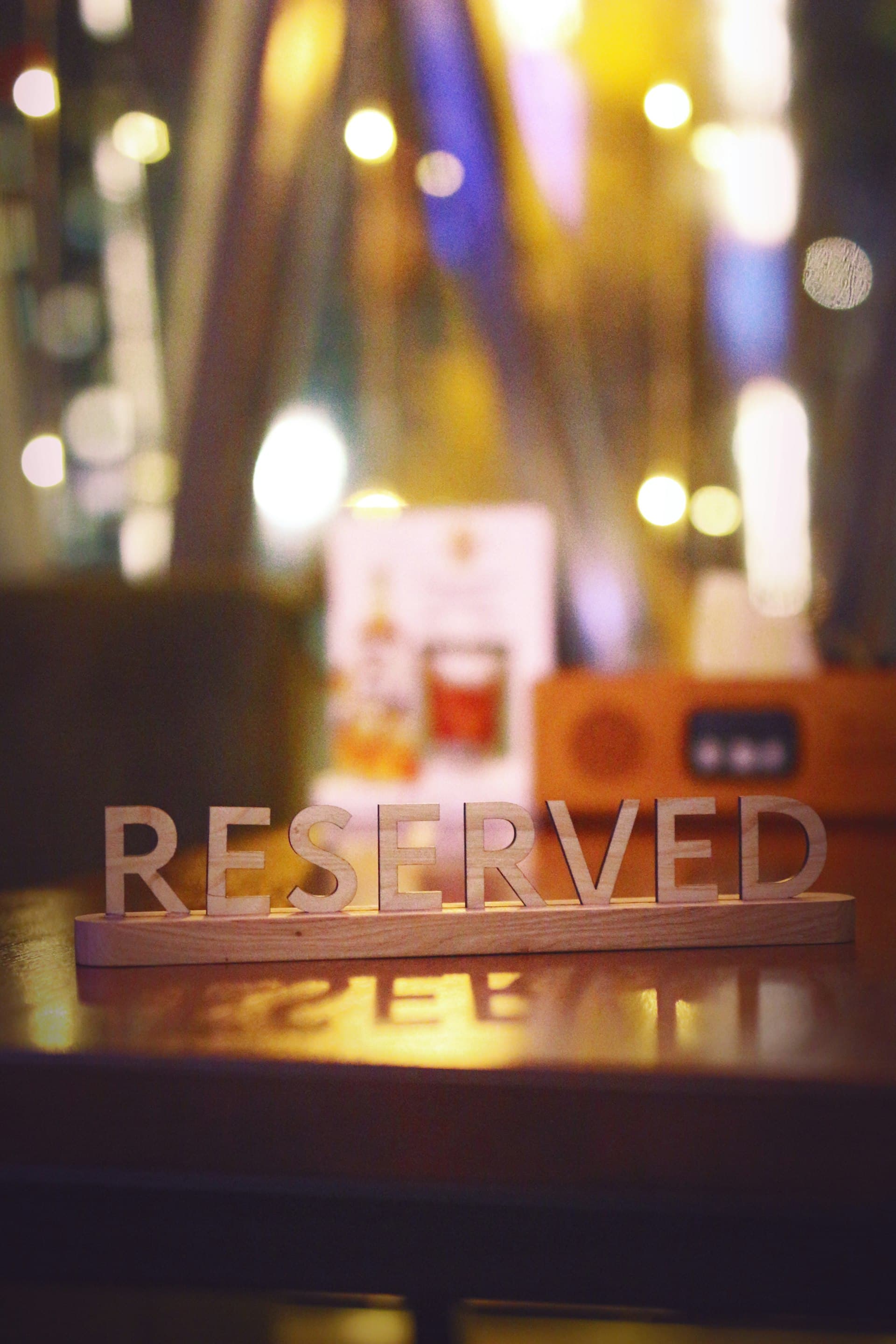
Taking Table Reservations Without a Booking App
By menu-MENA Team
Published on August 10, 2026
Who a lightweight reservations flow is actually for
If you run a sit-down restaurant that gets a handful of booking requests a day, maybe a few families calling ahead for Friday night, a couple wanting a table by the window, a group asking if you can fit eight people at 8pm, this is built for you. It replaces the phone call, the sticky note by the register, or the paper reservation book someone has to remember to check.
It is not a table-yield management system. If you're running a large multi-seating fine-dining operation where turning a table twice in an evening actually moves revenue, you need software that tracks live availability by table and seating time, and this isn't that. There's no floor plan, no per-table calendar, no automatic overbooking prevention. What you get instead is a clean way for guests to ask, and a clean way for you to say yes or no.
How the guest books a table
Once you turn the feature on, a "Reserve a table" link shows up on your public menu page. Tapping it opens a simple booking form: date, time, party size, guest name, phone number (required), email (optional), and a note field for anything they want to mention, a birthday, a specific seating request, whatever.
There's no account and no login. The guest fills the form and submits.
What happens after they hit submit
The guest gets an on-screen confirmation right away, something along the lines of "we received your request." If they left an email, a confirmation email follows. Both of these confirm the request reached you, not that the table is locked in, and the form doesn't pretend otherwise.
On your end, you get an email with the full booking detail and a direct link into your admin reservations page. If you'd rather not have your inbox fill up with every single request, the "granular notification toggles" in settings let you switch that specific email off while leaving everything else as is.
How you manage requests
Everything lands on the admin reservations page, and there are two ways to look at it.
The calendar
A small month view where each day shows a count of how many reservations landed on it. Click a day and the list below filters down to just that day, which is the fastest way to answer "what does tonight look like" without scrolling.

The list
Every reservation, sorted soonest-first. Each one carries a status you set by hand: pending, confirmed, or cancelled. A new request comes in as pending. You look at it, decide if you can take it, and mark it confirmed or cancelled yourself.
Why manual confirm or decline is a feature, not a bug
There's no algorithm deciding whether you can fit a table of six at 9pm on a Saturday. You decide. That's deliberate.
A restaurant that seats 40 people knows things a booking system doesn't: that table three is wobbly and out of rotation this week, that the kitchen is already stretched thin on a Saturday with two events booked, that a regular customer asking for 8:30 should probably get a call back instead of an automatic yes. Manual review means you can say "yes, but 8:45 instead" or "let me call you to check" instead of a system silently overbooking a table because two requests landed within the same ten minutes.
It also means you're never staring at a dashboard trying to figure out why the software double-booked a four-top. There's no double-booking to debug because there's no automatic booking to begin with. Every reservation you see confirmed is one you actually looked at and confirmed yourself.
Turning it on
- Go to restaurant-info settings in your admin dashboard.
- Find the reservations toggle and switch it on. It's off by default, so nothing on your live menu changes until you do this.
- The "Reserve a table" link appears automatically on your public menu page. No separate page to build, no link to add anywhere.
- Check your notification settings if you want to adjust whether new-booking emails land in your inbox.
- Requests start showing up on the admin reservations page as they come in.
That's the whole setup. No new subscription, no separate app to download, no menu redesign.
Key takeaways
- Off by default. One toggle in restaurant-info settings turns it on, and the "Reserve a table" link appears on your public menu automatically.
- The guest form needs no account: date, time, party size, name, phone, optional email and note.
- Guests get an instant on-screen confirmation plus an email if they gave one. You get an email with a link to the admin page, and you can turn that notification off if you want.
- The admin reservations page has a month calendar with per-day counts and a soonest-first list, each reservation carrying a status you set: pending, confirmed, cancelled.
- It's deliberately manual: no table assignment, no automatic capacity checks. You review and decide, same as a walk-in reservation book, just without the paper.
If your reservation process right now is "call the restaurant" or a notebook by the host stand, this closes that gap without asking you to learn a booking platform. Turn on the toggle, and the requests start coming to you in a place you can actually manage.